Animation Sequences
Overview
The Animation Sequence is a composite animation asset based on the skeleton asset. It is created by the Animation Editor and provides advanced features on top of the skeleton such as Retargeting, Root Motion, Notify, Marker-based Syncing and Curve Editing.
An Animation Sequence can be played standalone in the pipeline directly, or used for composite assets such as Montage, Blend Space and Anim Tree.
Creating Animation Sequences
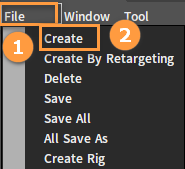
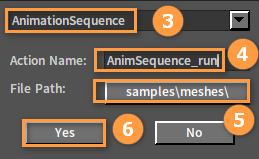
Click File -> Create to open the Asset Creating window to create an Animation Sequence asset.
Asset Details
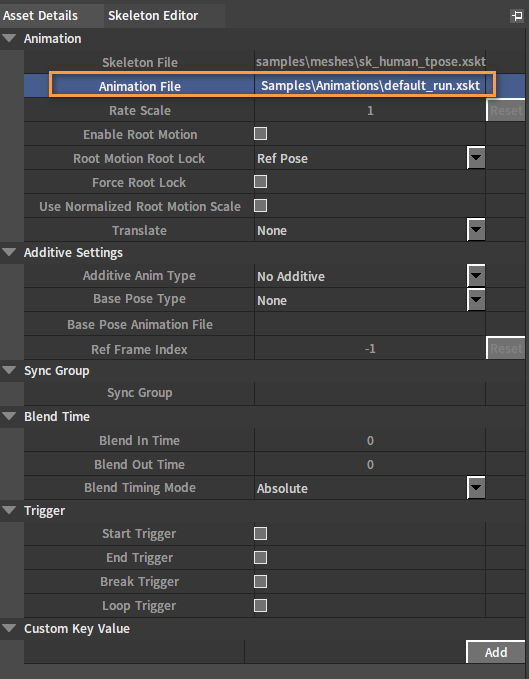
An Animation File needs to be specified in the Asset Details panel, and you can continue setting up the Animation Sequence by changing other items.
| Property | Description |
|---|---|
| Skeleton File | Source skeleton file path (Read only) |
| Animation File | Animation file path |
| Rate Scale | Play rate scaling factor |
| Enable Root Motion | Enable root motion or not |
| Root Motion Root Lock | The way to lock the root bone after the root motion is extracted
|
| Force Root Lock | Force locking of the root bone, regardless of whether root motion has been extracted |
| Use Normalized Root Motion Scale | Use normalized root motion scaling (To avoid the effect of non-normalized scaling on root motion results) |
| Translate | Legacy root motion related settings. Clear Z-Axis and Clear X,Z Axes can be chosen. |
| Additive Anim Type |
|
| Base Pose Type |
|
| Base Pose Animation File | Specified the animation file to use as the base pose |
| Ref Frame Index | Specified frame |
| Sync Group | Sync group |
| Blend In Time | Blend in time |
| Blend Out Time | Blend out time |
| Blend Timing Mode |
|
| Start Trigger | Start playback trigger event |
| End Trigger | End playback trigger event |
| Break Trigger | Break playback trigger event |
| Loop Trigger | Loop playback trigger event |
| Custom Key Value | Custom key value |
Notifies
The Notify can locate specific points in Animation Sequences, and subsequently set events to occur at specific points to which Notifies are added.
The Notify typically adds effects such as sounds and particles to the Animation Sequence. It adds richness to the Animation Sequence and meets the needs of game creation in many ways.

For more details on Notify, please refer to Animation Notify.
Animation Curves
Attach curve data to the animation, and the curves can be blended with each other. The logic layer can use these curve data to drive different effects (e.g. drive the intensity of IK, drive the material values, etc.). Using animation curves to customize the animation data is the semantic description of the animation data.
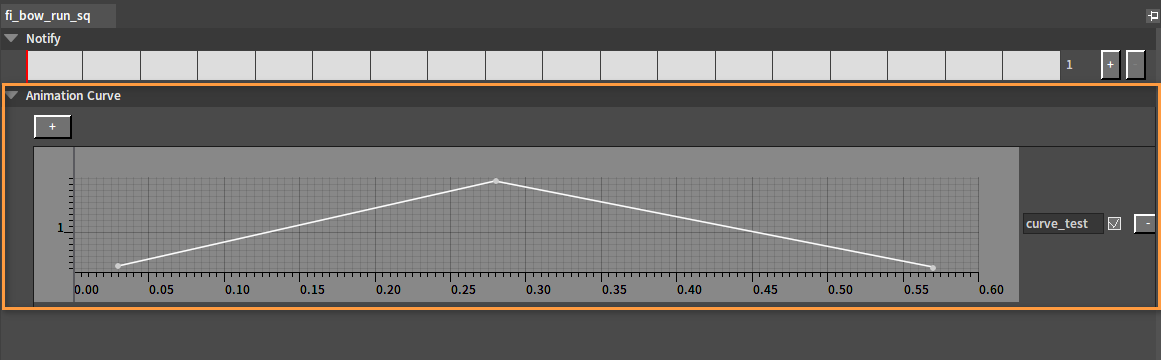
For more details about Notify, please refer to Animation Curves.